Fix: Universal Clipboard Not Working Between iPhone and Mac
Universal Clipboard can fail between an iPhone and a Mac even when copy and paste still work normally on each device. There is no separate clipboard switch to turn on; the feature depends on Apple’s Continuity requirements, the same Apple Account, Handoff, Wi-Fi, Bluetooth, and nearby-device communication.
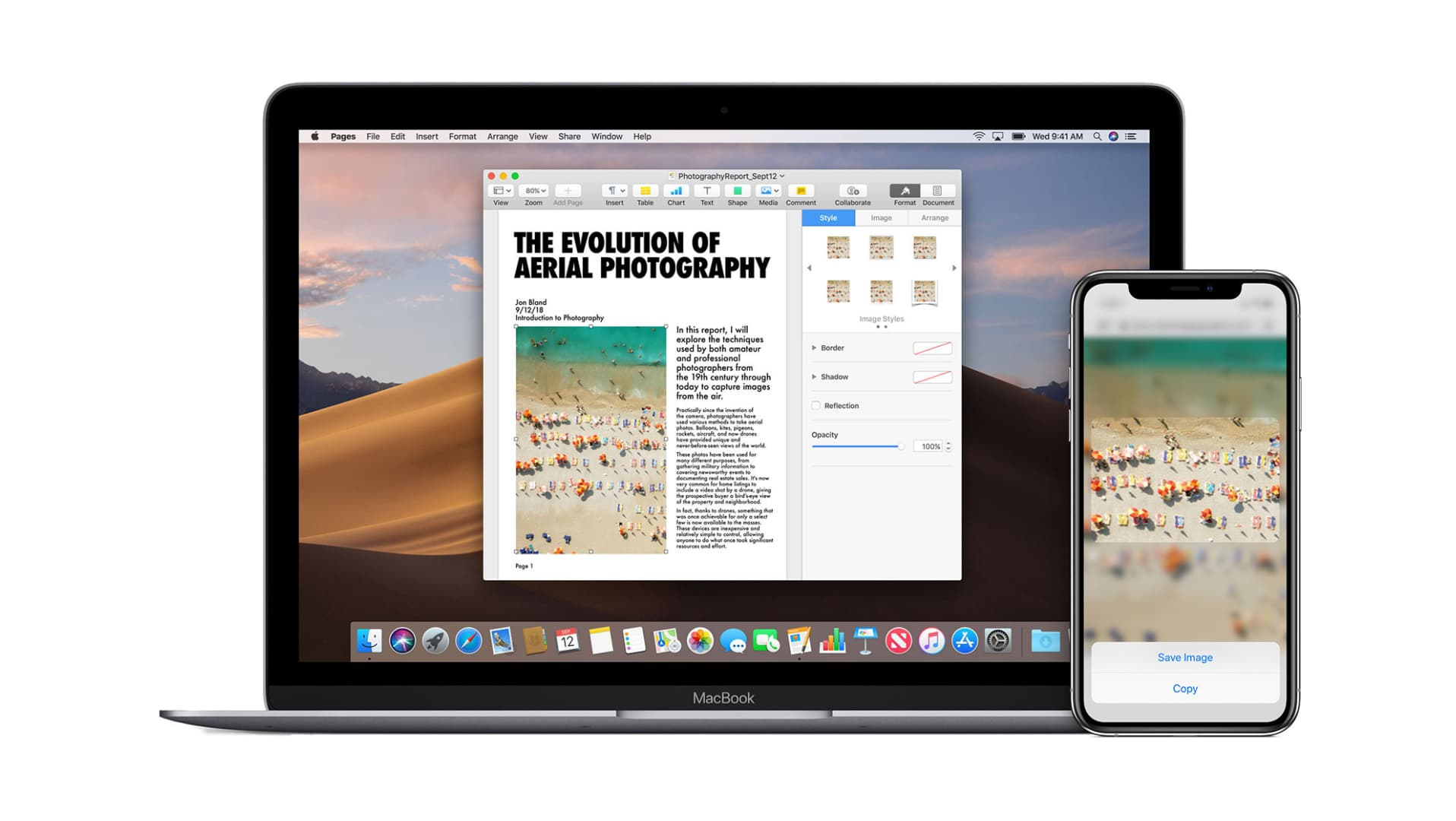
That is why the problem can feel uneven. It may work in one direction, fail only after an update, or stop when the devices are signed into different accounts. It can also look broken if the copied item expires before you paste it, or if you are trying to move files that would be better handled with AirDrop.
1. Confirm the Devices Support Universal Clipboard and Use the Same Apple Account
Apple treats Universal Clipboard as a Continuity feature, so the device pair has to meet Apple’s compatibility rules first. It also requires both devices to be signed in with the same Apple Account.
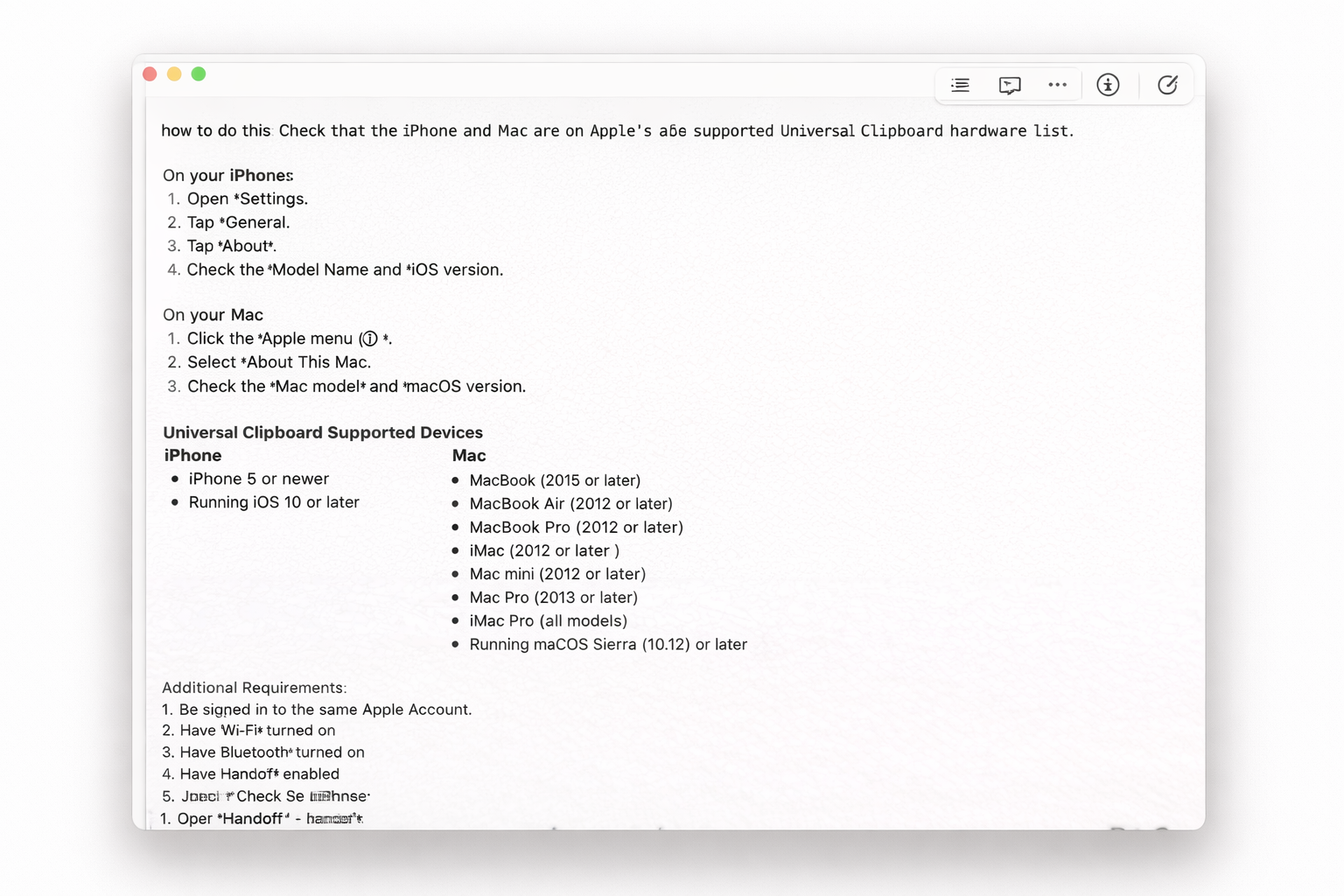
- Check that the iPhone and Mac are on Apple’s supported Universal Clipboard hardware list.
- On the iPhone, open Settings and tap your name at the top.
- Confirm which Apple Account is signed in.
- On the Mac, open System Settings and check the Apple Account shown at the top.
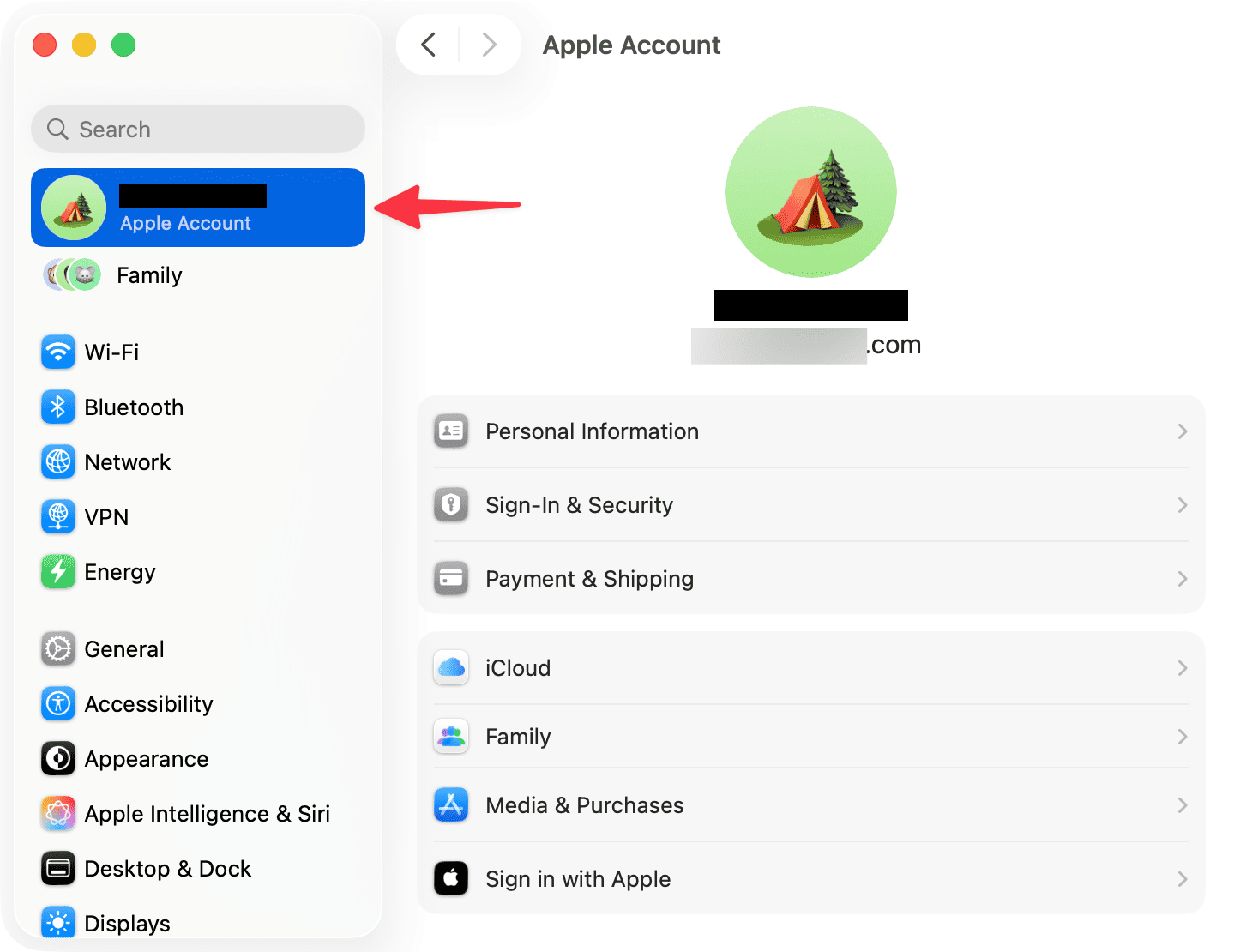
A Mac can feel like your main device while still being signed into a different Apple Account than the iPhone. - If the Apple Accounts do not match, sign in with the same account before testing Universal Clipboard again.
If the Mac is unsupported or the accounts do not match, Universal Clipboard will not work reliably on that pair. If both are correct, check Handoff and nearby-device settings.
2. Turn On Wi-Fi, Bluetooth, and Handoff on Both Devices
Universal Clipboard uses Apple’s Continuity layer. Both devices need Wi-Fi, Bluetooth, and Handoff enabled, and they need to be near each other while you copy and paste.
- Turn on Wi-Fi and Bluetooth on the iPhone.
- Turn on Wi-Fi and Bluetooth on the Mac.
- On the iPhone, go to Settings > General > AirPlay & Handoff.
- Turn on Handoff.
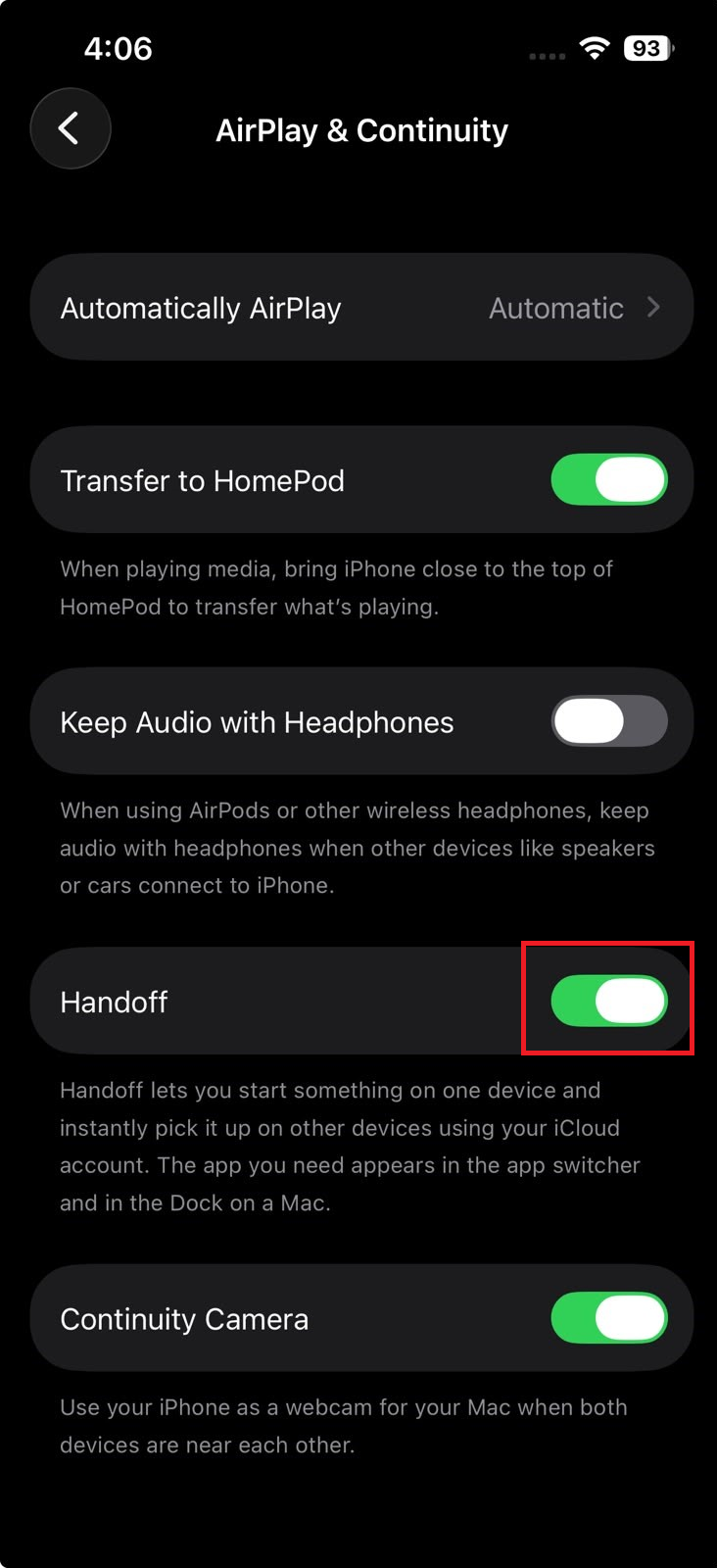
The iPhone needs Handoff enabled before it can share clipboard content with the Mac. - On the Mac, go to System Settings > General > AirDrop & Handoff.
- Turn on Allow Handoff between this Mac and your iCloud devices.
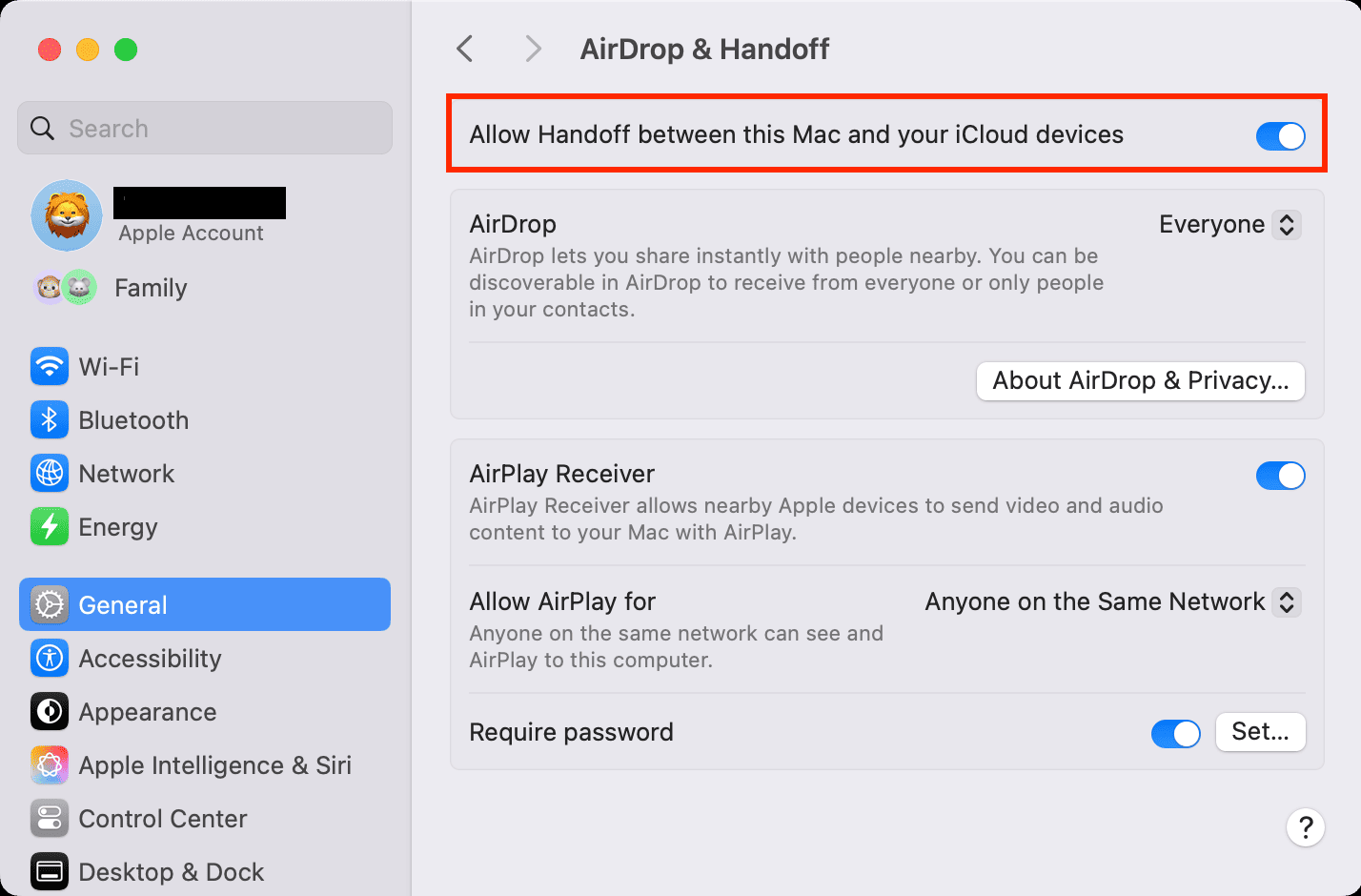
The Mac also needs Handoff enabled before Universal Clipboard can bridge to the iPhone. - Place the iPhone and Mac close together before testing again.
If Universal Clipboard works after enabling Handoff or moving the devices closer, the clipboard was never the main problem. If the settings already look correct, run a clean copy-and-paste test.
3. Test with a Fast Plain-Text Copy and Temporarily Disable VPN
Universal Clipboard does not open as a separate app or clipboard history panel. You copy on one device and paste quickly on the other. Apple also notes that the copied item stays available only briefly or until something else is copied.
- On the iPhone, copy one short line of text from Notes or Safari.
- Move to the Mac immediately and paste with Command-V in Notes or TextEdit.
A quick plain-text test removes timing, app compatibility, and file-size confusion from the check. - Repeat the test in the other direction by copying short text on the Mac and pasting it on the iPhone right away.
- If either device uses a VPN, turn it off temporarily and test again.
- If you are trying to move large files, several items, or folders, use AirDrop instead of forcing Universal Clipboard to handle the transfer.
If the quick text test works, Universal Clipboard is fine and the earlier failure was likely timing, VPN interference, or the wrong transfer method. If it still fails both ways, refresh the software state.
4. Update iOS and macOS, Then Restart Both Devices
Universal Clipboard depends on both sides of the Apple Continuity stack. If the iPhone was updated but the Mac was not, or the feature stopped after a system update, installing pending updates and restarting both devices is worth doing before any account-level changes.
- On the iPhone, go to Settings > General > Software Update and install any available update.
- On the Mac, go to System Settings > General > Software Update and install any available update.
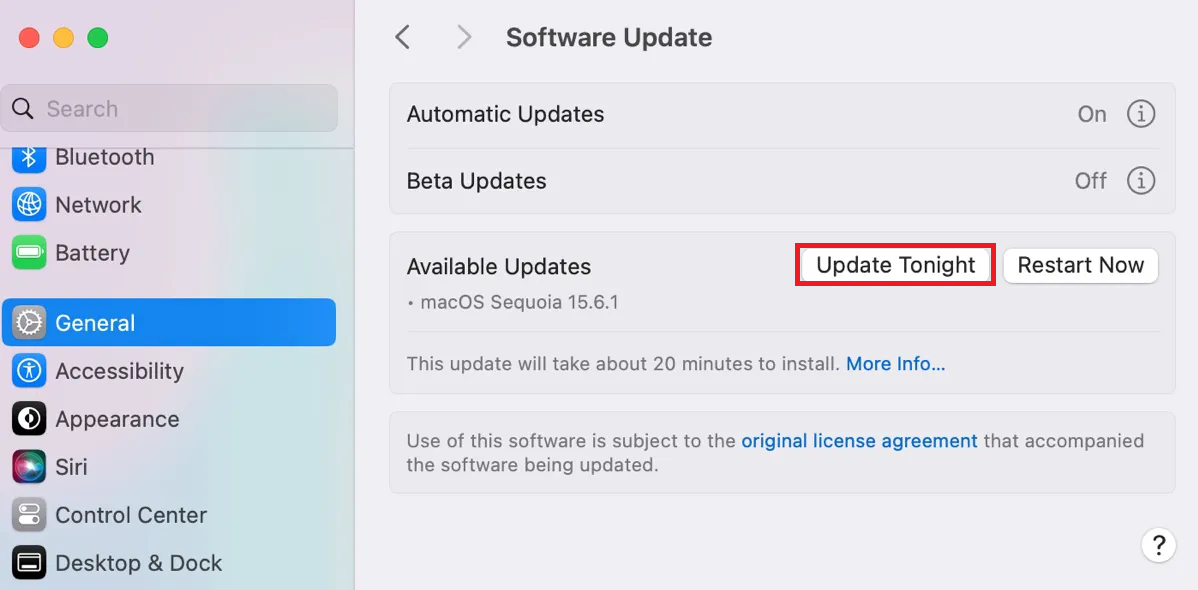
Updating both devices keeps the Continuity stack aligned on the iPhone and Mac. - Restart both devices after the updates finish.
- Confirm Wi-Fi, Bluetooth, and Handoff are still enabled.
- Run the quick plain-text copy test again.
If Universal Clipboard returns after the update and restart, the issue was stale Continuity state. If it still fails on a supported, updated pair, check whether other Continuity features are also broken.